
Codex setup
Correct flow
Section titled “Correct flow”Codex setup with ArianAPI has two stages: create an API key yourself in the ArianAPI console, then save the provider, API key, model, and Codex instance configuration in Cockpit Tools.
Order of operations:
- Log in to the ArianAPI console and create an API key yourself on the API keys (API 密钥) page.
- Download the Cockpit Tools installer that matches your OS and CPU architecture.
- Install and open Cockpit Tools.
- In Cockpit Tools, add an ArianAPI model provider and paste the key from the previous step.
- Choose the Codex instance and model to use, then launch Codex from Cockpit Tools.
You must create the API key yourself in the ArianAPI console. Support will not create it for you, and will not send a ready-made key in chat. First-party ChatGPT login tokens, browser cookies, and session strings are not keys issued by ArianAPI; pasting them will be rejected.
Step 1: Create an API key in the ArianAPI console
Section titled “Step 1: Create an API key in the ArianAPI console”The ArianAPI console does not offer public registration. The login URL, username, and initial password are delivered privately by support at account setup. If you have not received them, contact support first.
1.1 Log in to the ArianAPI console
Section titled “1.1 Log in to the ArianAPI console”- Open the console login URL that support delivered to you.
- Log in with the username and initial password you received.
- On first login, change the initial password as the page prompts, then continue.
1.2 Open the API keys (API 密钥) page
Section titled “1.2 Open the API keys (API 密钥) page”After login, look at the left navigation:
- Find the General (常规) group.
- Click API keys (API 密钥).
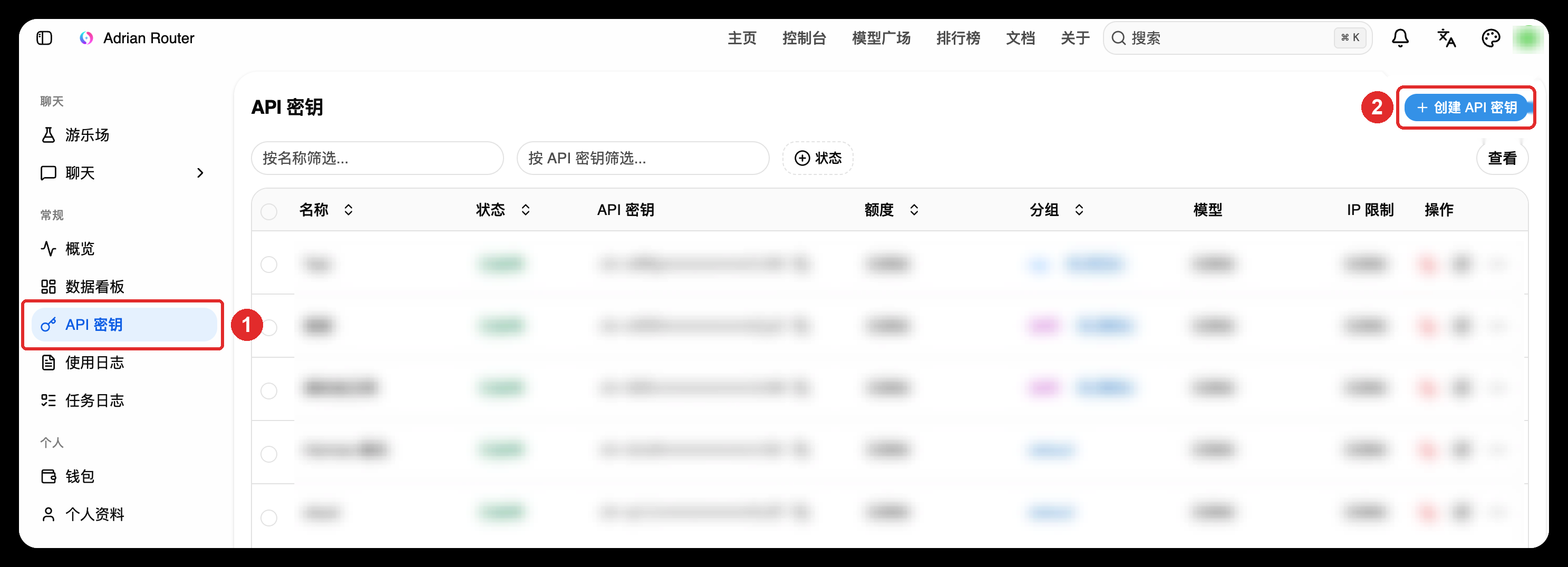
Figure 1: Callout 1 is the left-nav General → API keys (常规 → API 密钥) entry; callout 2 is the Create API key (创建 API 密钥) button at the top right of the page — the only create entry.
1.3 Fill in the Create API key (创建 API 密钥) dialog
Section titled “1.3 Fill in the Create API key (创建 API 密钥) dialog”Click Create API key (创建 API 密钥) at the top right, and fill the dialog as follows:
- Name (名称): use a name you will recognize, for example
codex-mac. The name only helps you tell keys apart in the list; it does not affect API calls. - Group (分组): choose the group support told you to use. If unsure, ask support first; do not pick one at random.
- Expiration (过期时间): the default is Never expires (永不过期). If you want periodic key rotation, change it to
1 个月or shorter. - Quantity (数量): keep
1. Create one key at a time; that is easiest to troubleshoot when something goes wrong. - Quota settings (额度设置): Unlimited quota (无限配额) is on by default. If support gave your account a different quota basis, follow support’s instructions; do not change this on your own.
- Advanced settings (高级设置): if unsure, do not expand; leave the defaults.
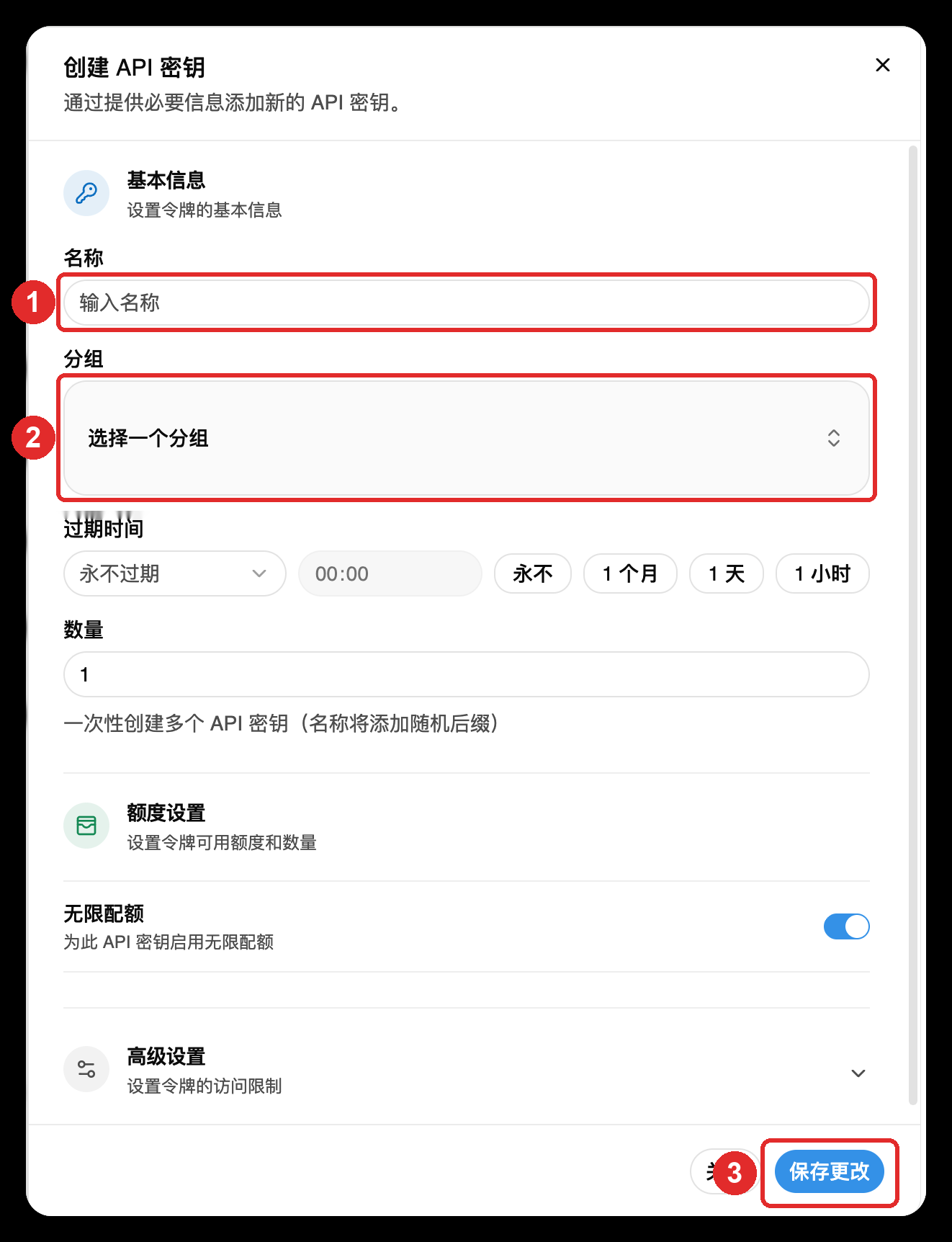
Figure 2: Callout 1 is Name (名称), callout 2 is Group (分组), callout 3 is Save changes (保存更改) at the bottom right.
1.4 Copy and store the key
Section titled “1.4 Copy and store the key”- After saving, return to the API keys (API 密钥) list; the new key appears there.
- Copy the full key from the API key (API 密钥) column.
- Paste it immediately into your local password manager, or fill it into Cockpit Tools in the next step.
- Do not post it in group chats, share screenshots, or commit it to a Git repository.
How to confirm you copied the right thing:
- The key starts with
sk-. - If what you copied looks like your login password, or is clearly much shorter, you copied the wrong value — go back to the list and copy again.
- In the list, the Status (状态) column shows enabled, and the Quota (额度) column shows the available quota for your account.
1.5 Optional one-command check
Section titled “1.5 Optional one-command check”Replace YOUR_API_KEY with the key you just created:
curl -sS -D - -o /dev/null \ -H "Authorization: Bearer YOUR_API_KEY" \ https://api.arianapi.cc/v1/models- Correct key: success status and a model list.
- Unauthorized: the key was not copied in full, or it is not a key issued by ArianAPI. Do not switch to a first-party ChatGPT token because of that.
Step 2: Download the matching installer
Section titled “Step 2: Download the matching installer”Confirm your OS and CPU architecture first, then use the matching link. Do not mix installers across Apple Silicon, Intel, x64, and ARM64.
Currently verified version: Cockpit Tools v1.3.35 (2026-09-01).
| Your computer | Installer to choose | Download |
|---|---|---|
| macOS, Apple M1 / M2 / M3 / M4 / M5 | Apple Silicon / aarch64 .dmg |
Download macOS Apple Silicon |
| macOS, Intel processor | Intel / x86_64 .dmg |
Download macOS Intel |
| Windows 10 / 11, Intel or AMD 64-bit | x64 .msi (recommended) |
Download Windows x64 MSI |
| Windows 10 / 11, Intel or AMD 64-bit | x64 .exe |
Download Windows x64 EXE |
| Ubuntu / Debian, Intel or AMD 64-bit | x86_64 / amd64 .deb |
Download Linux x86_64 DEB |
| Ubuntu / Debian, ARM64 | ARM64 .deb |
Download Linux ARM64 DEB |
| Fedora / RHEL, Intel or AMD 64-bit | x86_64 .rpm |
Download Linux x86_64 RPM |
| Fedora / RHEL, ARM64 | ARM64 .rpm |
Download Linux ARM64 RPM |
| Other Linux, Intel or AMD 64-bit | x86_64 / amd64 .AppImage |
Download Linux x86_64 AppImage |
| Other Linux, ARM64 | ARM64 .AppImage |
Download Linux ARM64 AppImage |
The links above point directly at the installer for that OS and architecture. If Cockpit Tools has released a newer version, open Cockpit Tools official Releases and download the latest build for the same OS and architecture; do not switch formats arbitrarily.
If you are unsure of your Mac architecture: Apple menu (top left) → About This Mac (关于本机). If it shows an Apple M-series chip, choose Apple Silicon; if it shows Intel, choose Intel.
Step 3: Install Cockpit Tools
Section titled “Step 3: Install Cockpit Tools”- Open the downloaded installer and drag Cockpit Tools into Applications.
- If the system blocks the first open, go to System Settings → Privacy & Security, confirm the app source, then choose Open Anyway.
Windows
Section titled “Windows”Double-click the .msi (recommended) or .exe and finish the installer wizard.
.deb: open it with your system’s software installer, or runsudo apt install ./安装包文件名.deb..AppImage: grant execute permission, then run it, for examplechmod +x Cockpit.Tools_*.AppImage.
Step 4: Add ArianAPI in Cockpit Tools
Section titled “Step 4: Add ArianAPI in Cockpit Tools”- Open Codex → Model providers (模型供应商), then click Add provider (新增供应商) at the top right.
- For provider, choose Custom (自定义).
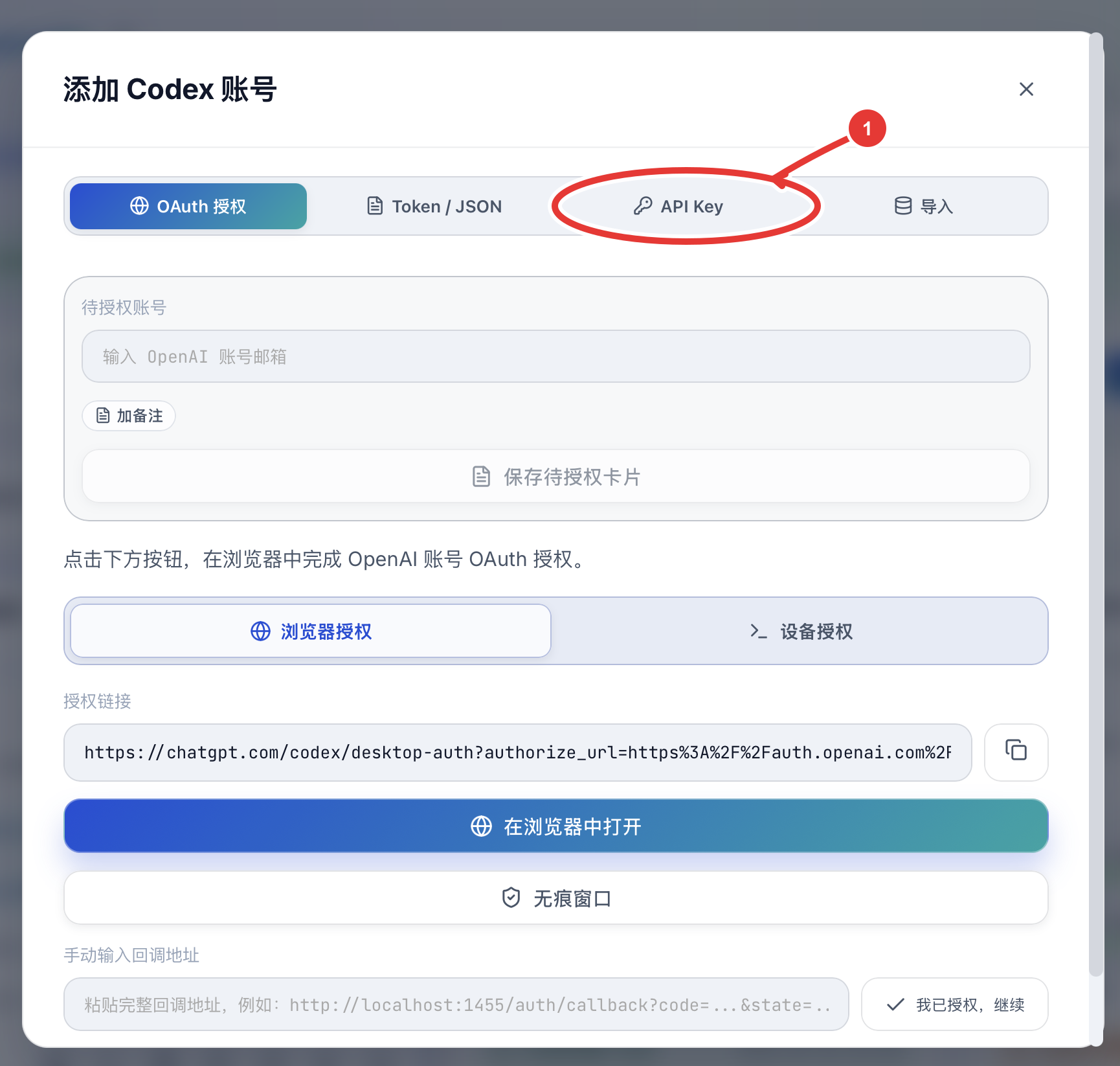
Figure 3: In the Add Codex account dialog, click callout 1, the API Key tab. ArianAPI setup does not use OAuth.
- Fill in as follows:
| Setting | Value |
|---|---|
| Provider name | ArianAPI |
| Base URL | https://api.arianapi.cc/v1 |
| Protocol | Responses 原生 |
| WebSocket transport | Off; enable only if the relay service explicitly supports it |
| Add API Key | Paste the API key you created in the ArianAPI console in Step 1 |
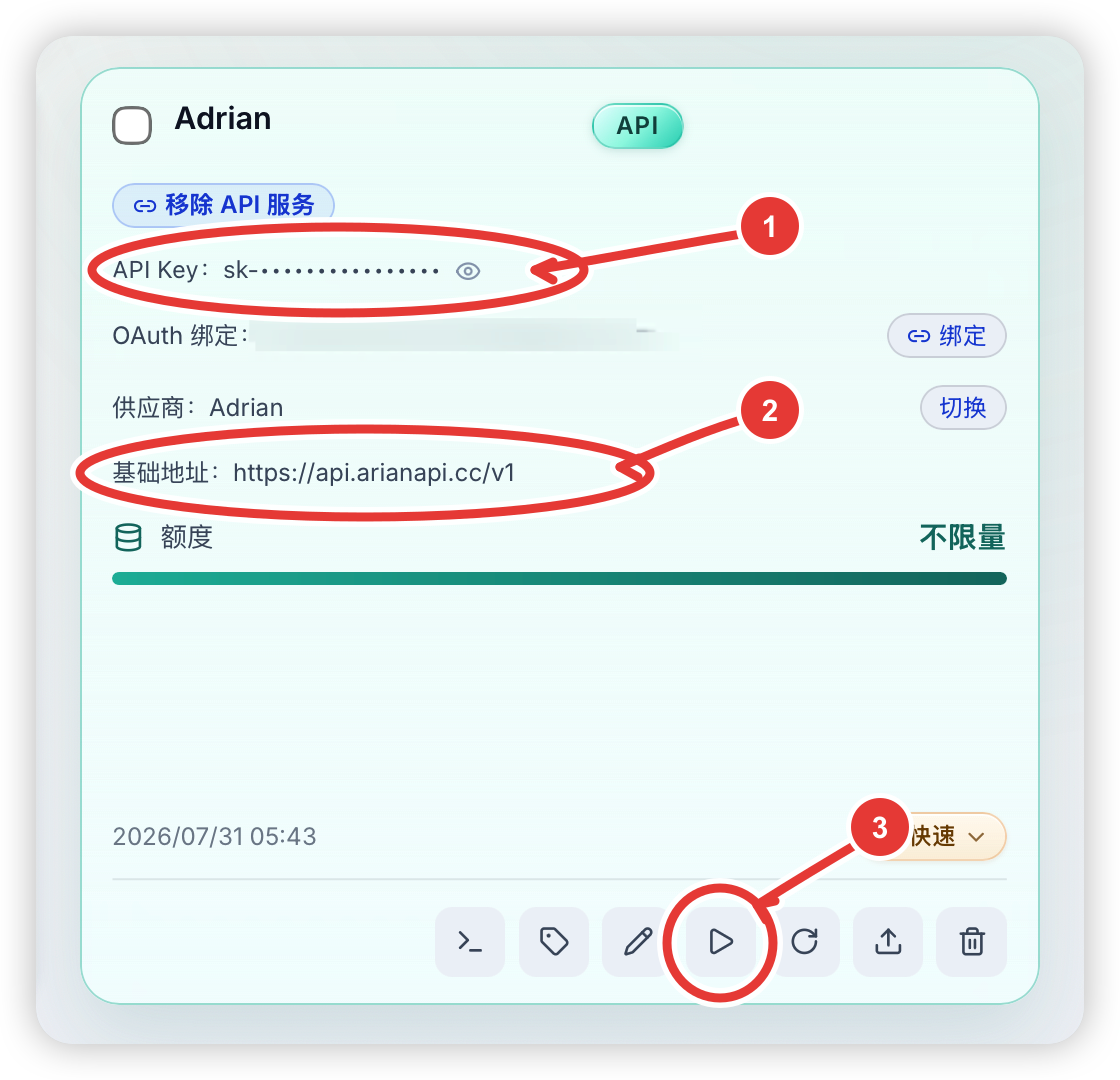
Figure 4: Callout 1 — check or paste the API key; callout 2 — confirm the base URL is
https://api.arianapi.cc/v1; after saving, click callout 3, the triangle launch button at the bottom.
- Save the provider.
- From the ArianAPI model catalog, copy a Codex-compatible model name available that day; do not type old aliases by hand.
- Return to the provider card, select the target Codex instance, and click Enable and launch (启用并启动). If the target instance says it is not initialized yet, go to the Multi-instance (应用多开) page, start that instance once, then come back and enable it.
Saving a provider only stores the provider and key first; Cockpit Tools applies this configuration to the selected Codex instance only after you click Enable and launch (启用并启动).
Common issues
Section titled “Common issues”- Cannot log in to the ArianAPI console: confirm the login URL, username, and initial password match exactly what support delivered. If you changed the password after first login, use the new password.
- Cannot find the create entry: on the left-nav General → API keys (常规 → API 密钥) page, the create button is at the top right of the page, not in the top navigation.
- Unauthorized after pasting the key into the client: first verify the key alone with
curlas in Step 1.5; ifcurlalso fails, the problem is the key itself — copy again from the list or create a new one. - Download link broken or a newer version is advertised: open official Releases and pick the latest build for the same OS, architecture, and installer format as this page.
- Installer will not open: confirm you chose the correct OS and CPU architecture; do not mix Apple Silicon, Intel, x64, and ARM64.
- Error looks like a first-party ChatGPT login failure: confirm you selected the ArianAPI provider in Cockpit Tools and launched the matching Codex instance, instead of continuing the old first-party session.
- Still using the first-party account after saving the provider: save alone does not switch the instance; return to the provider card and click Enable and launch (启用并启动).
- Insufficient model capacity or asked to switch models: retry later, or use another model available on the model catalog that day.
- Image or specific tool calling fails: first confirm the model declares support for that capability; do not assume every model supports images or the same tool set.